Outlook phish alert button: an MSP setup and reporting guide
Outlook phish alert button setup and reporting workflows for MSPs managing Microsoft 365 clients at scale.
DefendWise
DefendWise
TL;DR
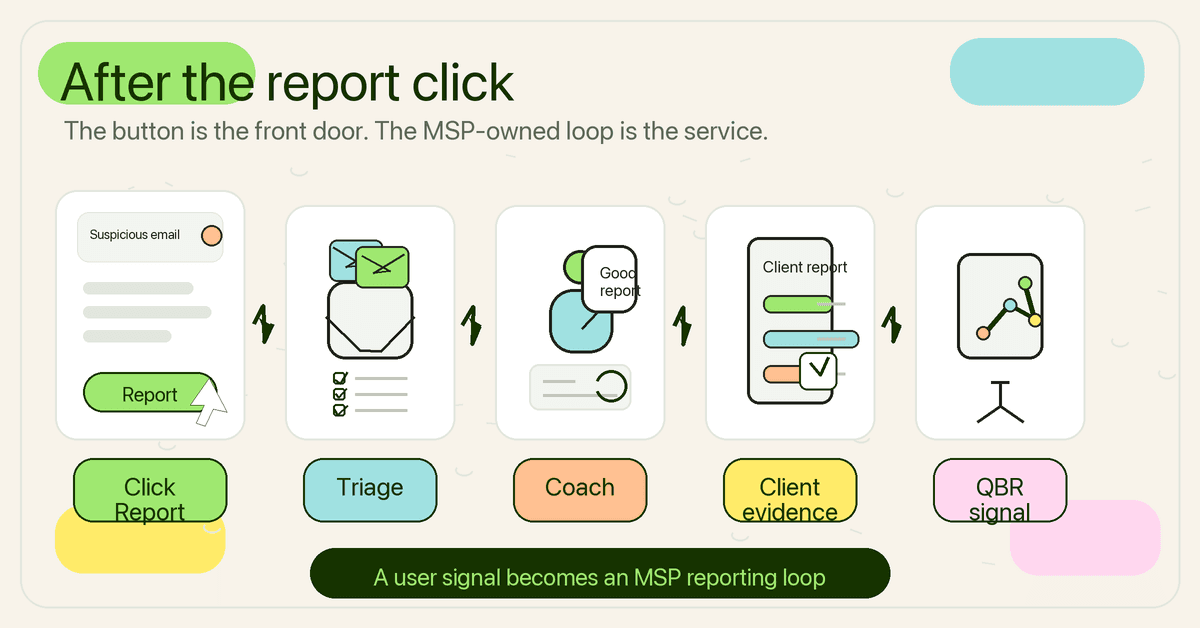
The Outlook phish alert button is useful because it gives users a low-friction way to report suspicious email from the place they already work. For MSPs, the real value comes after the click: where the report goes, who reviews it, how fast it is triaged, how users are coached, and what evidence the client sees.
Microsoft now recommends the built-in Outlook Report button over the older Report Message and Report Phishing add-ins. MSPs should treat the button as a reporting input inside a client-ready workflow: configure the destination, document the triage path, teach staff what to report, measure useful behaviour, and include the signal in QBR or security awareness reporting.
What is the Outlook phish alert button?
The Outlook phish alert button is the reporting control users click when they believe an email is phishing, junk, or suspicious. In Microsoft’s current guidance, the preferred option is the built-in Outlook Report button in supported Outlook clients.
Microsoft says the button lets users report false positives and false negatives. In plain MSP language, that means users can report bad email that reached the inbox, or good email that Microsoft filtered incorrectly. Those reports can then flow into Microsoft Defender for Office 365 and, depending on configuration, a reporting mailbox controlled by the organisation or its MSP.
That matters because phishing defence should not rely on users quietly deleting suspicious mail. If a user reports the message, the security team gets a chance to see the pattern, submit the item to Microsoft, warn other users, clean up similar messages, and record what happened.
The search phrase “Outlook phish alert button” often points to 3 different things:
| Name people use | What it usually means | MSP note |
|---|---|---|
| Built-in Outlook Report button | Microsoft’s current built-in reporting control in supported Outlook clients | Microsoft recommends this path where supported |
| Report Message add-in | Older Microsoft add-in for reporting junk, phishing, and not-junk messages | Microsoft says it is in maintenance mode and will eventually be deprecated |
| Report Phishing add-in | Older Microsoft add-in focused on phishing reports | Same deprecation path; plan transition rather than new long-term rollout |
| Third-party phish alert button | Vendor-provided button from a SAT, email security, or phishing simulation platform | Useful in some stacks, but document where reports go and who owns triage |
The button is not the programme. It is the front door.
Why this matters for MSPs
Most MSP clients live in Microsoft 365. That makes Outlook reporting one of the easiest behaviour changes to teach: if something looks wrong, do not forward it around the business, do not reply, and do not just delete it. Report it.
CISA, NSA, FBI, and MS-ISAC tell organisations to train users to identify and report suspicious emails, links, attachments, potential phishing lures, and accidental interactions with suspicious content. NIST’s phishing guidance makes the same practical point: phishing messages try to get people to open harmful links, download malware, transfer money, submit credentials, or take other unsafe actions.
For an MSP, the benefit is bigger than one user doing the right thing. A reported message can become:
- an early warning that other users received the same lure
- a trigger for helpdesk or SecOps triage
- a Microsoft submission for analysis
- a client-specific coaching moment
- a QBR data point
- evidence that users have a clear reporting path
But the opposite is also true. If the button sends reports into a mailbox nobody watches, or if every client has a different process, the MSP has created another admin sink.
The right question is not “Do we have the button?” It is “What happens in the first 30 minutes after someone clicks it?”
Microsoft’s current direction: use the built-in Report button
Microsoft’s guidance is clear: the Microsoft Report Message and Report Phishing add-ins are in maintenance mode and will eventually be deprecated. Microsoft recommends transitioning to the built-in Outlook Report button.
That recommendation matters for MSP standardisation. If you are rolling out reporting across many clients, you do not want to build a new process around an add-in Microsoft has already put on the retirement path.
Microsoft lists several advantages for the built-in Report button, including broad Outlook support, better discoverability, support for reporting from the preview pane or reading window, custom confirmation and success pop-ups, and support for multi-message reporting.
There are still client details to check:
- supported Outlook versions and channels
- Exchange Online mailbox status
- shared mailbox and delegate reporting requirements
- user reported settings in Microsoft Defender
- whether reports go to Microsoft, a reporting mailbox, or both
- whether the client has Defender for Office 365 Plan 1 or Plan 2 features in scope
For shared or delegated mailboxes, Microsoft notes that the delegate needs Send As permissions for reports to be sent to the reporting mailbox. Without that permission, the message may be removed from the folder without reaching the reporting mailbox. That is the kind of edge case MSPs should catch in rollout testing, not after a client reports a missed phish.
What MSPs actually need before rollout
The button rollout should be treated like a small service design project. The technical setting is only one line item.
Use this checklist before you train users:
| Area | MSP question | Why it matters |
|---|---|---|
| Client scope | Which tenants, domains, shared mailboxes, and user groups are included? | Prevents “we thought everyone had it” confusion |
| Reporting destination | Will reports go to Microsoft, a reporting mailbox, or both? | Defines who sees the report and who acts first |
| Triage ownership | Does the MSP, client IT owner, or internal security team review reports? | Stops reports sitting untouched |
| Response SLA | What gets reviewed immediately, same day, or weekly? | Turns reporting into an operating process |
| User guidance | What should staff report, and what should they not use the button for? | Reduces noisy reports without discouraging reporting |
| Feedback loop | Will users receive confirmation or coaching? | Builds the behaviour you want repeated |
| Evidence | What will appear in monthly or quarterly client reporting? | Makes the workflow visible to decision-makers |
| Exceptions | What happens for mobile, shared mailboxes, older Outlook clients, and VIPs? | Keeps edge cases from becoming gaps |
This is where MSPs can separate a clean rollout from a checkbox install. The client should understand both the user action and the back-end promise: “When you report a suspicious email, here is where it goes, and here is what we do with it.”
Step-by-step: how to set up an Outlook phishing reporting workflow
1. Confirm the Microsoft reporting path
Start in Microsoft’s current guidance, not an old add-in tutorial. For new or refreshed deployments, plan around the built-in Outlook Report button where the client environment supports it.
In Microsoft Defender, user reported settings control whether Outlook reporting is monitored, which reporting experience is used, and where reported messages are delivered. Microsoft’s settings allow reported messages to go to Microsoft, a reporting mailbox, or both.
For MSP operations, “both” is often attractive because Microsoft gets the signal while the MSP or client still has a mailbox for triage and evidence. That is not a universal rule. Some regulated clients may want a different submission flow. Write the decision down.
2. Create or confirm the reporting mailbox
If reports go to a mailbox, make it a real operational mailbox, not a forgotten shared inbox.
Microsoft recommends preparing the reporting mailbox correctly. Its user reported settings guidance says the mailbox should be identified as a SecOps mailbox in advanced delivery policy, and excluded from DLP if data loss prevention would interfere with delivery. It also warns that this is important when using attack simulation training or third-party phishing simulations, because reported simulation messages can otherwise cause unwanted handling.
For MSPs, the mailbox standard should include:
- naming convention per client
- access control and least-privilege admin access
- routing rules or ticket creation, if used
- retention expectations
- escalation rules for likely malicious reports
- documented owner for daily review
Do not build a reporting path that depends on one technician remembering to check a mailbox tab.
3. Configure user reported settings
In the Microsoft Defender portal, user reported settings sit under Email & collaboration. Microsoft documents the direct user submission settings path at security.microsoft.com/securitysettings/userSubmission.
The configuration choices that matter most for MSPs are:
- whether Outlook reported messages are monitored
- whether the built-in Report button or a non-Microsoft button is used
- reported message destinations
- confirmation and success pop-up copy
- admin review result emails
- branding and sender details
- whether reports from quarantine are allowed
Use confirmation copy to set expectations. A bland “report submitted” message is fine, but a client-branded note can be better: “Thanks. This message has been sent to your security team for review.” Keep it short. Do not promise instant response if the service does not include one.
4. Test the button across client realities
Test in more than one Outlook surface. Microsoft lists support across Outlook for Microsoft 365 channels, Outlook for Mac, iOS, Android, new Outlook for Windows, and Outlook on the web, with version requirements.
At minimum, test:
- Outlook desktop for Windows
- Outlook on the web
- mobile Outlook if the client relies on it
- shared mailboxes or delegated mailboxes where relevant
- a standard user and a VIP user
- a simulated benign test message
- a message in Junk Email reported as not junk
Record the test result. If the client later asks whether the service was deployed, you want more than “we enabled the setting.”
5. Teach staff when to report
The training should be blunt and practical. Users do not need a lecture on email authentication to make a better decision.
Tell them to report messages that ask them to:
- sign in from a link they did not expect
- open an unexpected attachment
- approve a payment, invoice change, or bank detail update
- share a password, MFA code, payroll detail, or customer data
- scan an unexpected QR code
- move a conversation to text, WhatsApp, or a personal email account
- act urgently because a leader, supplier, or IT person supposedly asked
Also tell them what the button is not for. It is not for every newsletter they dislike, every internal email they disagree with, or support tickets unrelated to suspicious email. You want to reduce noise without making users second-guess genuine reports.
6. Build the triage runbook
A reporting button without triage is a suggestion box.
The runbook should say what the MSP does when a report lands:
- Check sender, domain, authentication, URLs, attachments, and recipient spread.
- Decide whether it is malicious, suspicious, spam, benign, or a simulation.
- Submit or resubmit to Microsoft if required.
- Search for similar messages in the tenant if the tooling supports it.
- Remove, quarantine, or warn as appropriate under the client’s service agreement.
- Reply to the reporting user when useful.
- Record the outcome for client reporting.
Microsoft’s Submissions page supports admin-originated submissions and admin submission of user-reported messages. Microsoft says analysis can include email authentication, policy hits, payload reputation or detonation, and grader analysis, depending on the tenant and environment.
For clients with Defender for Office 365 Plan 2, Automated Investigation and Response can also be part of the workflow. Microsoft says AIR can trigger from user submissions and investigate suspicious email activity, user clicks, suspicious attachments, suspicious URLs, and related alert types. Do not imply every client has AIR; check licensing.
7. Report the signal back to the client
Clients should see more than a count of reported emails.
A monthly or quarterly summary should separate:
- number of user reports
- confirmed malicious reports
- spam or nuisance reports
- false alarms that were still reasonable to report
- time from receipt to user report, where available
- users or teams that need extra coaching
- repeated themes, such as invoice fraud, QR phishing, password resets, or Microsoft 365 login lures
- actions taken by the MSP
This is a natural internal link to a wider measurement model: see measure security awareness effectiveness for a KPI stack that separates coverage, behaviour, risk movement, and evidence.
What good looks like
A good Outlook phish alert rollout has 5 signs.
First, users know what to do. The training is simple: do not reply, do not click, do not forward the message around, and use the report button when suspicious.
Second, reports land somewhere owned. Microsoft, a reporting mailbox, or both. The destination is documented, and the MSP can show who reviews it.
Third, triage is consistent. Technicians are not inventing the process client by client. A reported email gets a status, an outcome, and any required follow-up.
Fourth, reporting data becomes client evidence. It feeds a QBR, awareness report, insurer-readiness conversation, or audit support pack when relevant. It is not trapped in a mailbox.
Fifth, the button is part of training, not a substitute for it. Users still need short, current guidance on phishing, business email compromise, QR phishing, SMS scams, AI voice scams, and safe reporting.
For related service packaging, link this article to email templates for branded security awareness campaigns, reporting templates for MSP quarterly business reviews, and measure security awareness effectiveness. The theme is the same: MSPs win when the client sees a clear, branded, low-admin operating system rather than isolated security tools.
Mistakes to avoid
Treating button deployment as the finish line
Installing or enabling the button is the easiest part. The service value is in triage, coaching, and reporting.
If the MSP cannot answer where reports go, who reviews them, and what appears in the client summary, the workflow is not ready.
Keeping the old add-in forever because it is familiar
Some clients may still use the older Microsoft add-ins or a third-party button. That does not make the environment wrong by default. But Microsoft has already said its Report Message and Report Phishing add-ins are in maintenance mode and will eventually be deprecated.
At minimum, create a transition plan. Do not discover the dependency during a rushed tenant migration.
Overcorrecting noisy reports
Some false alarms are a healthy sign. A user who reports a suspicious-looking but benign email is safer than a user who ignores a real lure because they are afraid of “wasting IT’s time.”
Coach users, but do not shame them for reasonable reports.
Ignoring shared mailbox behaviour
Shared mailboxes are common in MSP client environments: accounts payable, reception, support, sales, HR. They are also common phishing targets.
Microsoft notes that delegate reporting has permission requirements. Test shared mailbox reporting before declaring the rollout done.
Reporting raw counts without context
“Users reported 83 emails” is not a management insight. Was that 83 across 10 tenants or one client? Were 3 malicious? Did one theme repeat? Did the MSP take action? Did users report faster than last quarter?
Raw counts need interpretation.
Framework and evidence mapping
The Outlook report phishing workflow can support wider security awareness and response evidence, but it should not be oversold.
CISA’s joint phishing guidance recommends training users to identify and report suspicious emails, links, attachments, potential phishing lures, and accidental interactions. That aligns directly with a report button and a staff runbook.
NIST’s small business phishing guidance explains phishing as convincing messages used to trick users into harmful links, malware downloads, credential submission, or unsafe actions. The reporting workflow helps turn “spot the phish” training into a real action.
Microsoft’s own documentation gives the operational evidence trail: user reported settings, the Submissions page, admin submissions, reporting mailbox configuration, and Defender investigation workflows where licensed.
For MSP client reports, avoid saying the button “makes the client compliant.” Better language:
| Evidence item | Safer claim | Unsafe claim to avoid |
|---|---|---|
| User reporting enabled | “Users have a documented path to report suspicious email.” | “The client is phishing-proof.” |
| Reporting mailbox | “Reported messages are routed for review.” | “Every phish will be caught.” |
| Triage outcomes | “Reports are reviewed and categorised.” | “The MSP guarantees same-day remediation.” |
| Monthly summary | “The client can see reporting behaviour and follow-up actions.” | “This proves compliance.” |
| Training plus reporting | “Users are trained to recognize and report suspicious messages.” | “Training eliminates human risk.” |
That discipline matters. MSPs need client confidence, not inflated claims.
How a flat-rate MSP SAT platform helps
The Outlook phish alert button gives users a reporting motion. MSPs still need the wider awareness layer around it: onboarding, training, reminders, reporting, client-ready summaries, and repeatable delivery across tenants.
Defendwise is built for MSPs that want flat-fee, multi-tenant, white-label security awareness training without a per-seat tax. Use the Microsoft button as one reporting signal. Use the awareness platform to make the client programme understandable, branded, and easier to run across the whole client base.
Use the Start Free 7-Day Trial button below to see the workflow.
Frequently asked questions
What is the Outlook phish alert button?
It is the control users click in Outlook when they want to report a suspicious email. Microsoft’s current preferred path is the built-in Outlook Report button in supported clients.
Is the Microsoft Report Phishing add-in going away?
Microsoft says the Report Message and Report Phishing add-ins are in maintenance mode and will eventually be deprecated. Microsoft recommends transitioning to the built-in Outlook Report button.
Where do reports appear for admins?
User-reported messages can appear on the User reported tab of the Submissions page in the Microsoft Defender portal. The exact flow depends on user reported settings and whether reports go to Microsoft, a reporting mailbox, or both.
Should users report spam with the same button?
Microsoft’s Report button can support phishing, junk, and not-junk reporting. MSPs should teach users the difference so phishing reports do not become a dumping ground for every unwanted newsletter.
What should an MSP do after a user reports a phish?
Review the message, categorise the outcome, submit or resubmit to Microsoft when appropriate, look for related messages, take remediation steps under the service agreement, coach the user if useful, and record the outcome for client reporting.
Does a phishing report button reduce risk by itself?
No. It reduces friction in reporting. Risk reduction comes from the whole loop: training, timely reporting, triage, remediation, coaching, and management visibility.
How should MSPs include report-button data in QBRs?
Show report volume, confirmed malicious reports, false alarms, time-to-report, repeated themes, actions taken, and next-quarter training priorities. Keep the summary client-readable.
Can Defendwise replace Microsoft Defender?
No. Defendwise is security awareness training for MSPs. Microsoft Defender and Outlook reporting handle Microsoft 365 email security workflows. The clean model is to use each tool for its job and report the combined story to the client.
Sources
- Microsoft Learn, “Report phishing and suspicious emails in Outlook for admins”
- Microsoft Learn, “Transition from the Microsoft Report Message or the Report Phishing add-ins”
- Microsoft Learn, “User reported settings”
- Microsoft Learn, “Manage submissions”
- Microsoft Learn, “Report spam, non-spam, phishing, suspicious emails, and files to Microsoft”
- Microsoft Learn, “Automated investigation and response in Microsoft Defender for Office 365”
- Microsoft Defender for Office 365 blog, “Built-in report button is available in Microsoft Outlook across platforms”
- NCSC, “Configuring Microsoft Outlook 365’s ‘Report Phishing’ add-in”
- [CISA / NSA / FBI / MS-ISAC, “Phishing Guidance](Stopping the Attack Cycle at Phase One”: https://www.cisa.gov/sites/default/files/2023-10/Phishing%20Guidance%20-%20Stopping%20the%20Attack%20Cycle%20at%20Phase%20One_508c.pdf)
- NIST, “Phishing”
- [NIST, “Phishing in the net](the NIST Phish Scale and cybersecurity awareness”: https://www.nist.gov/publications/phishing-net-nist-phish-scale-and-cybersecurity-awareness)
- FTC, “Phishing”